 Huy Pham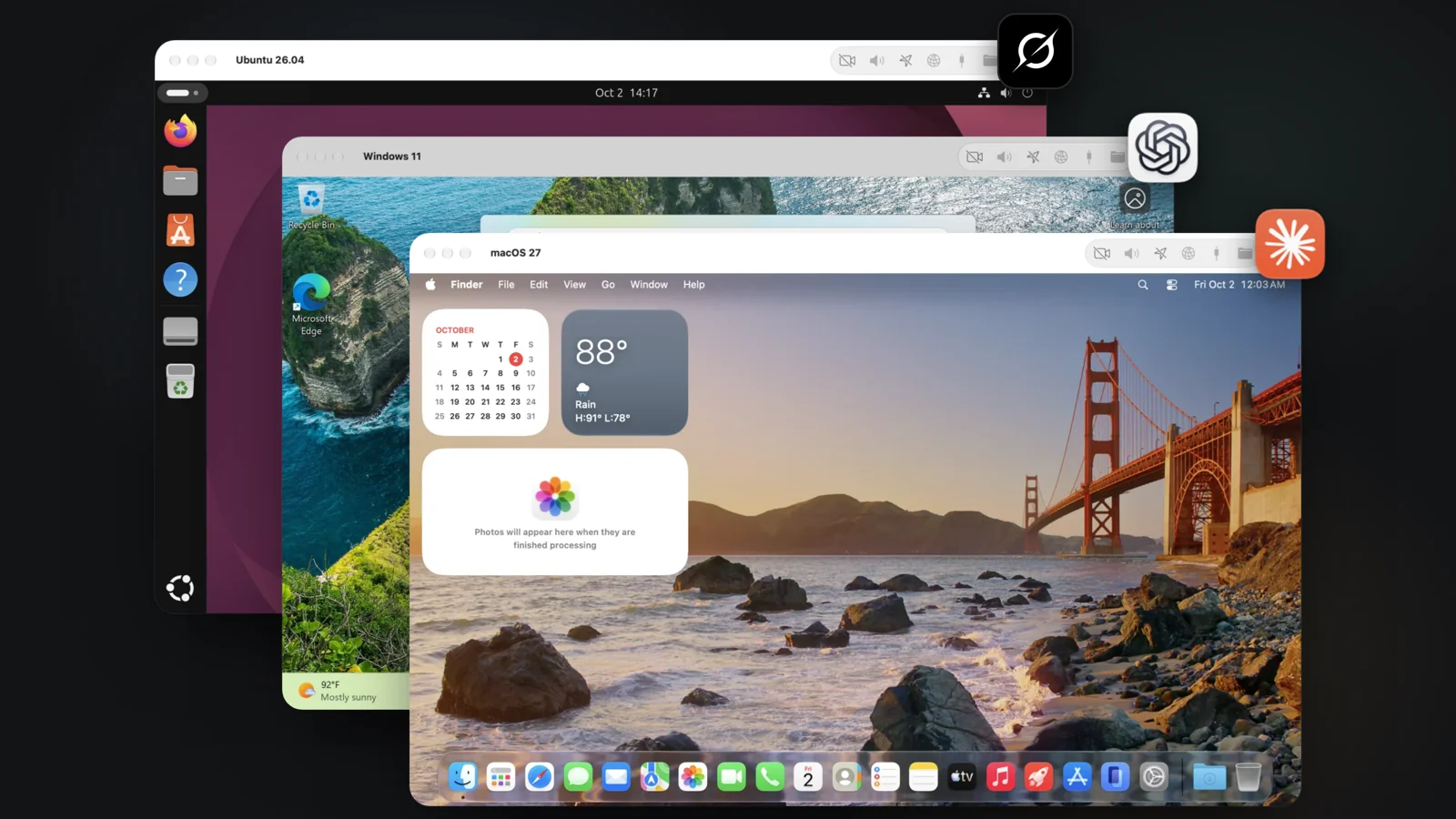
Your AI agent can write code, run tests and fix bugs. Ask it to do the rest of your work on a computer, such as answering email, researching in a browser or filling in a form in an app, and it hits a wall. It doesn't have permission.
Agents never get full control
A computer is built for a person in front of it, and it guards itself against everything else. So the moment an agent tries to do more than type in a terminal, the system stops and asks for a human:
- Accessibility access in Privacy & Security, before it can click and type.
- Screen Recording access, before it can see the screen.
- A password for sudo, or a Yes on Windows' User Account Control prompt.
- A dialog only a person can click.
That's how it should be. Your Mac should never hand full control to a program. But it means your agent can't finish on its own.
So you end up babysitting
You stay at the machine. You approve a permission, type a password, open Settings to allow one more thing, then wait for the next prompt. Or you set up remote login to do the same from somewhere else. Either way, the agent only works while you watch.
VMPal gives your agent a machine of its own
We built VMPal's virtual machines for this. Turn on agent control, connect your agent, and it gets everything a person at that desk has:
- The screen. It sees the machine's display and reads the text on it. No Screen Recording permission.
- The mouse and keyboard. It clicks, drags, scrolls, types and uses shortcuts through the machine's own mouse and keyboard. No Accessibility permission.
- Administrator rights. It runs commands as the user or as an administrator. No sudo password, no User Account Control prompt.
- A direct line. It connects through VMPal. No SSH, no VNC, no remote desktop to set up.
It even gets past the sign-in screen: VMPal types the password it keeps for the machine, and your agent never sees it.
You approve when you connect it. After that, your agent works on its own, and you don't have to be there.
Not just code
With a whole computer, your agent can do what you'd do at one, in the same apps:
- Answer email. It reads the inbox in Mail or Outlook and drafts replies.
- Research. It searches, reads pages and PDFs, and writes up what it found.
- Work in apps. It fills in forms, updates spreadsheets and gets through apps that have no command line.
- Set things up. It installs software, clicks through installers and changes settings.
- Test your app. It runs it in Windows, macOS or Linux and uses it the way your users do.
Sign the machine in to the accounts it needs, as you would on a new computer. Your agent works in those, not in your Mac's. VMPal also tells agents to ask you before they do anything outside the machine, such as sending an email.
Set it up
There are two ways, depending on how much you want your agent to reach.
All your machines. In VMPal, open Settings › AI Agents and turn on Let coding agents on this Mac manage all VMs. Then click Add to Claude Code, or the button for Codex, Grok Build or Antigravity, or find yours under Others…. Your agent can then create, start, stop and delete machines, take snapshots, and work inside any machine that allows agent control.
One machine. Open the machine's Settings › AI Agents and turn on Allow agent control of this VM. Then choose where your agent runs:
- Agent on This Mac. Your agent stays on your Mac and works the machine from outside. The machine just needs to be running.
- Agent Inside the VM. Your agent lives in the machine, with its own files and tools. It can also take snapshots of its machine, go back to one, and restart it. Start the machine, sign in and install your agent there first.
Click Add to Claude Code or your agent's button, restart your agent, give it a task and walk away.
In a macOS machine, connecting the first agent asks for the machine's administrator password.
Prefer scripts? The vmpal command line does the same from Terminal or CI. Ask your agent to show you how.
Full control, on a machine that isn't your Mac
Full control is safe here because it's not your Mac.
- It only gets its machine. Never your Mac's screen, mouse or keyboard. Of your files, it sees only the folders the machine shares. A new machine shares your Downloads folder.
- You hold the switch. Letting agents manage all your machines is off until you turn it on. Each machine's agent control is on by default. Turn it off, and the agent stops at once.
- You can undo. Take a snapshot before a big task, and revert if it goes wrong.
- You decide what it reaches. It sees only the network, folders and accounts you give the machine.
Download VMPal, make a machine and hand it to your agent. Then get on with your day.